Q850 is a standard that defines Cause Codes in digital telecommunications networks such as ISDN (Integrated Services Digital Network) and VoIP (Voice over IP).
The Q850 codes allow you to pinpoint the exact cause of premature call termination if it is due to problems on the telephony side. This can be useful when using your own telephony trunk, as the Q850 codes allow you to identify the error yourself without contacting TWIN platform support.
¶ Report generation
- Go to the Reports section of your personal cabinet.
- Click Create Report or
 in the upper left corner. The report generation window will open.
 - On the Main tab, select:
- Service — Voice Bots.
- (Optional) Task: from the drop-down list, select a call task to generate a report. When selected, the Line and Voice Bots fields, as well as the date and time calendar settings, become unavailable.
- Line — the line on which the bot is placed.
- (Optional) Bot — the bot script that was used in the calls.
- Report Type: select the type of report to be generated. General report includes only system fields. Arbitrary report allows you to include any fields from the results recorded in the bot script, as well as arbitrary variables used to pass raw data from the candidate registry file.
- Customize the report period: click on the field with the calendar icon to select the start and end date and time. The report will be generated based on the data for the specified period.
If there are no values in the Task and Bot fields, a report is generated for all bots for the period specified in the calendar.
- Click the Fields tab.
- Verify that the Q850 Code field is included in the report.
- Click Generate. Once the report is generated, a notification will appear in the lower right corner.
- Click Download in the notification or click on
 in the row of the desired report in the list to download the report to your computer. The newly created report will appear at the top of the list.
¶ Analyze calls using a summary table
To calculate the number of errors during the call, the report data can be presented in the form of a summary table.
An example of building a summary table using Google tables:
- Extract the .xlsx file of the report generated in the previous step from the archive.
- Go to the Google Tables page, log in to your account if necessary.
- Create a new table.
- Click File → Import in the table editor. The import window will open.
- Click the Upload tab in the window that opens.
- Click Browse and select the .xlsx report file, or drag and drop the report file into the import window.
- Click Import Data once the file has been uploaded. The information from the report will display in the table.
- Highlight all the data in the table, for example using the Ctrl+A shortcut keys.
- Click Insert → Pivot table in the table editor. The create pivot table window opens.
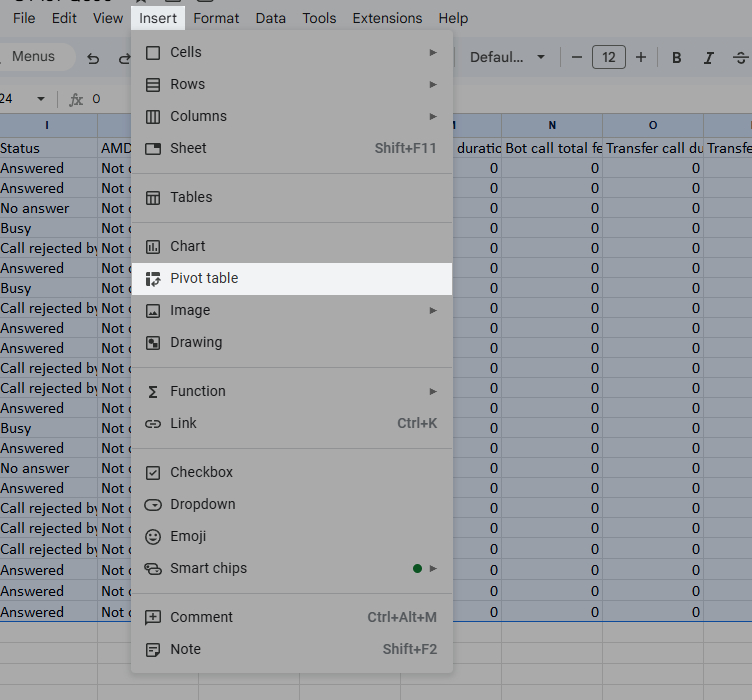
- Click Create in the window that opens. A new sheet opens with the pivot table editor.
- Add the Status and Q850 Code fields in the summary table editor under Rows.
- Add the Q850 Code field in the Values section.
- Specify the COUNT value in the Summarize by field in Values.
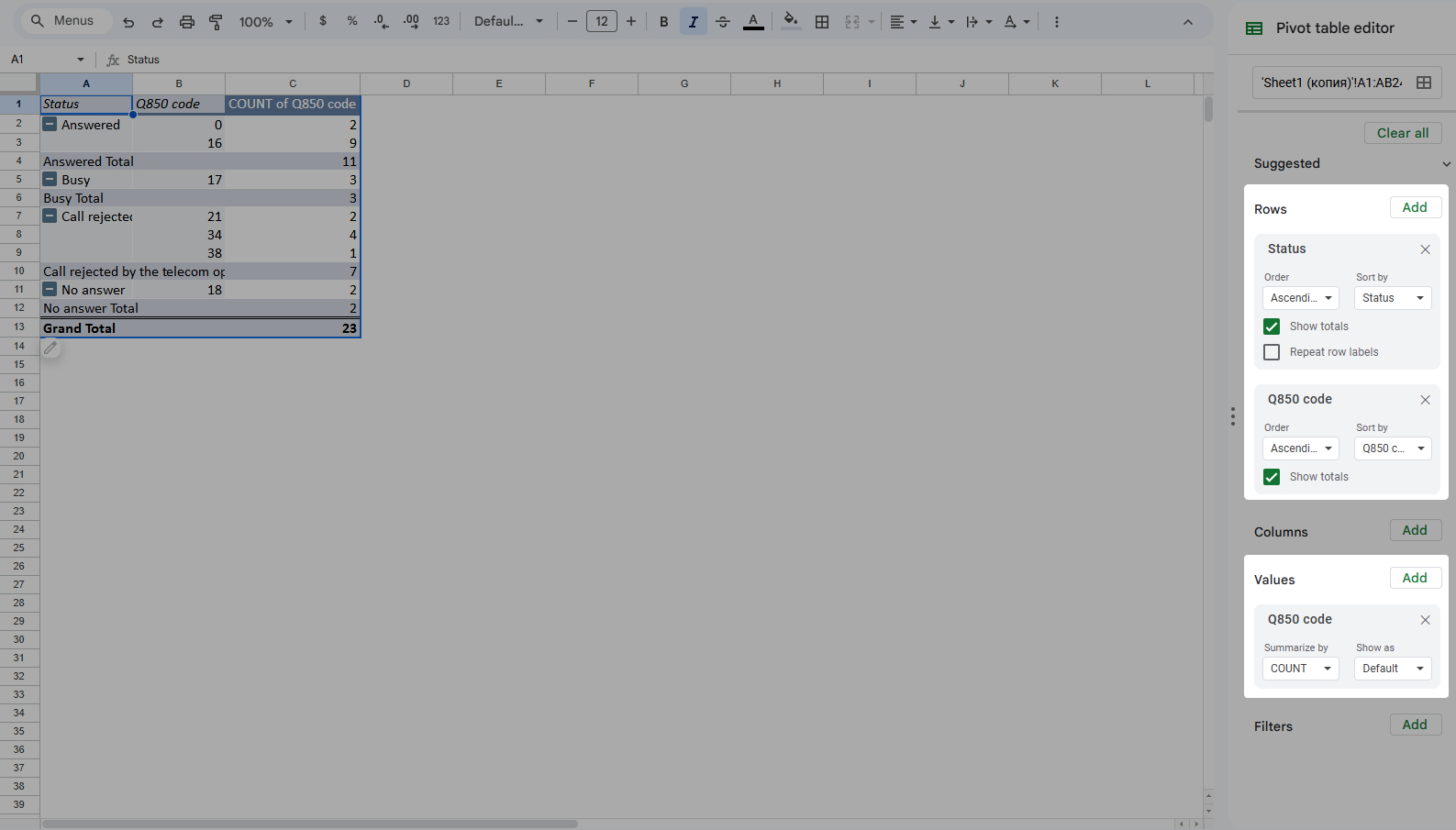
A summary table will be constructed, with the first column displaying the system call statuses, the second column displaying all Q850 codes from the report, and the third column displaying the number of calls that correlate to the Q850 statuses and codes from the rows in the table.
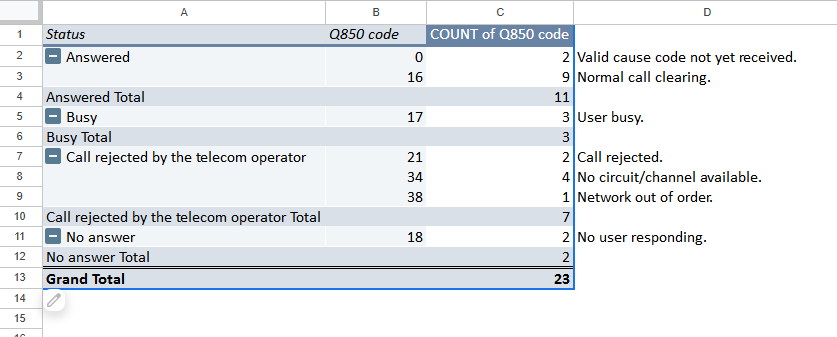
Correlate the resulting data with the code values from the article Q850 Telephony Answer Codes to determine how many errors occurred during the call and what the causes of these errors and non-dials were.
Based on the report data from the example below, we can conclude:
- 11 calls were successful,
- 5 calls failed to reach the subscriber,
- in 7 calls there was an error.
¶ Analyze calls by Q850 codes
Based on the Q850 codes received, you can determine the reason why the dialog failed.
The codes 1, 16, 17, 18, 19, 22, 28 and 31 are not telephony errors. The others may indicate faults - if they occur, please pass the code and description to your telephony provider for rectification.
A complete list of codes and their decoding is available in the article Q850 Telephony Answer Codes.
The most frequent error has the code 34 — no free channel. Most often it indicates excessive call intensity.
If you encounter this error, reduce the CPS of the call task.