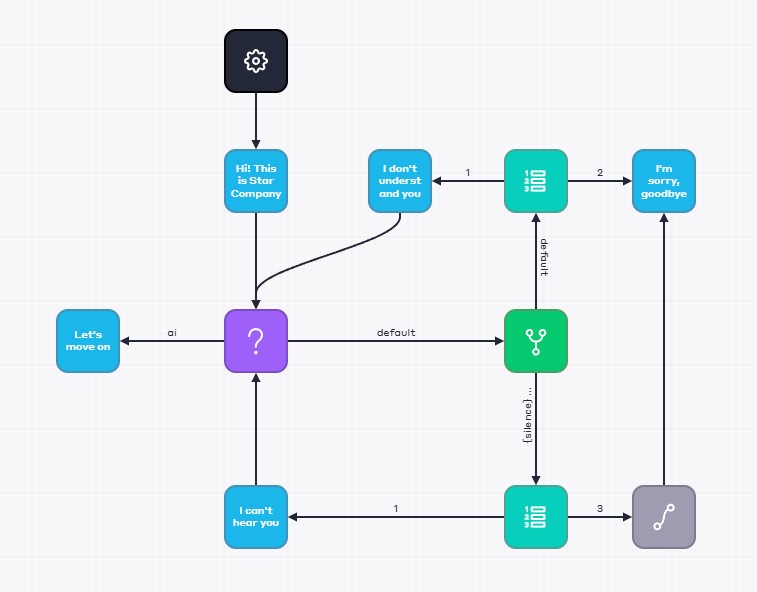
Customer silence is when a customer does not respond or does not say a word after a question or command from a voice bot. For example, the customer is thinking, the customer doesn't understand the question, the customer doesn't know what to say, or the customer just doesn't want to talk.
Handling customer silence avoids awkward pauses and allows for smoother customer interactions. To handle customer silence in a script, follow these steps:
- Go to the Bot Scripts section of your personal account.
- Open the desired script in the editor. If you don't have a script, create a new one.
- Set up the Information block.
- Write a greeting phrase in the Message field.
- Drag the arrow from the Information block to the Question block, where you need to process silence.
- Check the Disable re-questioning box so that re-questioning does not occur without text.
- Uncheck the Use saved response box.
The question text must be in a separate information block before the Question block.
- Go to the Advanced tab of the start block.
- Clear the fields:
- Default block.
- Question help block.
- Set the Condition block.
- Draw an arrow from the Question block to the Condition block.
- Click on the arrow to open its properties.
- Select Output type → Default.
- Enter the variable
silencein the Save response block. - Set up the Sequential choice block.
- Draw an arrow from the Condition block to the Default block.
- Set up two Information blocks.
- Draw two arrows from the Sequential choice block to two new Information blocks:
- In the first block, place a phrase for when the bot cannot understand the customer's statement.
- In the second block, place a farewell phrase. If the bot fails to understand the customer's phrase twice, the dialogue will end.
- Set an arrow from the first Information block from step 17 to the Question block.
- Set another Sequential Selection block.
- Draw an arrow from the Conditions block to the block.
- Set the following parameters in the arrow:
- Output type: Condition “And”.
- Conditions: {silence} =.
This condition can be used to determine whether a variable has any value. If there is no value, it means that the customer has not said anything.
- Set up the Information block with a phrase for when the bot does not hear the client.
- Draw two arrows to the Information blocks from the Sequential Selection block from step 20:
- The first arrow leads to the new Information block.
- The second arrow leads to the Information block with the farewell phrase from step 17. If the bot fails to hear the customer twice, the dialogue will end.
- Set the arrow from the Information block from step 23 to the Question block.
- Save the script.
Thus, you will have a scenario like this: