This section will help you get started with the platform and familiarize yourself with its features.
With this article, you'll:
- Create a voice bot script and test it.
- Buy CallerID.
- Perform customer calls.
- View a report of the calls you have made.
¶ Preparation steps
- Sign up in TWIN. If you already have an account, sign in to your personal account.
- Replenish the Balance. The account balance must be positive.
¶ 1. Creating a voice bot script
- Go to the personal account TWIN.
- Go to the Bots.
- Click Create a bot or
 in the upper left corner.
 - Enter the title of the script: My first script.
- Click Save. The bots editor will open.
- Customize the starting unit. In the settings window that appears, in Speech, select:
- Voice: AllisonVoice.
-
- Emotions: Good.
- Leave the other settings unchanged.
- Drag and drop
 (the Result block) from the blocks panel onto the workspace.
 - Connect the blocks with an arrow. To do this, select the starting block and pull the
.png) (block Empty).
(block Empty).
Blocks that are not connected by arrows will not work.
- Clamp
 (block Information) under the Result block and pull it.
 - In the box on the right, in the Message field, write "Hi. How are you?".
- Enable result fixation and specify:
- NPS: No response.
- Leave other settings unchanged.
- Pull out the Information block from the Information block Question. To do this, press and drag it.
- Drag the three Information blocks out of the Question block.
- Customize the Information block:
-
Positive Answer block:
- Click on the branch leading to the Information block.
- Output Data Type: Keywords.
- Keywords: good "very good" excellent super.
- Leave other settings unchanged.
- Click on the branch leading to the Information block.
The bot needs the keywords to understand which path to follow. In order for the bot to interpret the answer correctly, you should write:
- words with a space;
- phrases in double quotes"".
-
Negative answer box:
- Click on the branch leading to the Information block.
- Output Data Type: Keywords.
- Keywords: bad "very bad" awful.
- Leave other settings unchanged.
-
Repeat request box:
- Click on the branch leading to the Information block.
- Output Data Type: Default.
- Leave other settings unchanged.
- Write the bot's response:
-
Positive Answer Block:
- Click on the Information block. The block settings window opens.
- Message: Great, I'm glad!
-
A block with a negative answer:
- Click on the Information block. The block settings window opens.
- Message: Cheer up, everything is going to be fine.
-
A block asking you to repeat:
- Click on the Information block. The block settings window opens.
- Message: Say again, how are you doing?
- Connect the Information block to the Result block with the arrow.
- Connect the Result block to the Question block with the arrow.
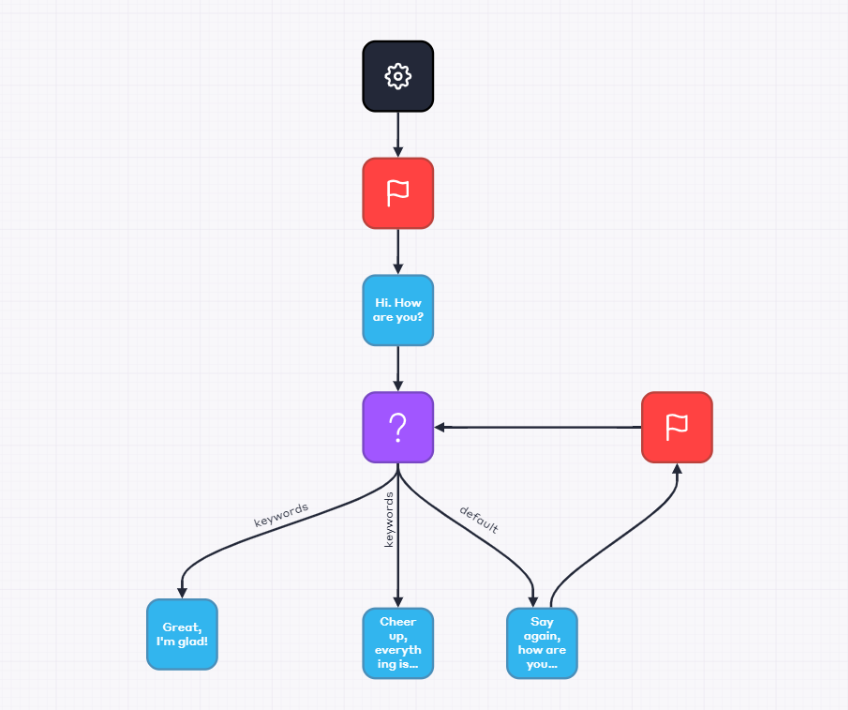
You should have a voice bot script like this:
- Click Save in the page header.
- Click
.png) .
.
¶ 2. Testing the bot
- Click Test Script in the upper right corner. This will open the bot testing window.
- Click Run to dialog in test mode.
- Write a response: Good.
¶ 3. Obtaining Caller ID
Caller ID is a technology that automatically detects a caller's phone number during an incoming call. This feature allows you to recognize from which subscriber the call came.
Caller ID is required to make or recieve calls. To obtain a callerID, contact your personal manager.
¶ 4. Starting a call
- Go to the Voice Bots.
- Click the Create a call task button.
- On the General tab:
- Name: Test Call.
- Bot: My first script.
- If the robot requested a redirect: End call.
- Designated number: Choose from available numbers.
- Select the phone number you purchased in the previous step from the drop-down list.
- Leave the other settings unchanged.
- Click Save. The page with the list of call tasks will open. Read more about creating a call job in the article Creating a call task.
- Click on a previously created call task.
- Click
 → Add Candidates Manually. This will open a window for adding phone numbers to call.
 - Enter the phone number in the Number field. The phone number must begin with the country code.
- Click Save. Read more about adding candidates to your call in the article Adding Candidates.
After creating a task and adding a candidate to the call, the bot will make a test call. At the end of the call you can download and view the report.
¶ 5. Downloading and viewing the report
- Click
 → Export Report in the call job row.
 - Go to the Reports section.
- Click on
 in the line with the report. A report on the results of the client's call will be downloaded to your computer.
Read more about downloading reports in the article Exporting call task report.